
How to Screenshot Anything (and Why It’s Super Useful)
Imagine This Scenario
You see an error message on your screen but don’t know how to describe it.
Wouldn’t it be easier to just show someone? That’s where screenshots save the day.

1. On Windows (PC or Laptop)
Press: Windows Key + Shift + S
The screen dims slightly. Drag your mouse to select what you want to capture—it’ll save to your clipboard (ready to paste in an email or document).
💡 Shortcut for entire screen: Press Print Screen (PrtSc) → open Paint → Ctrl + V → Save.
“Need a hand? Your friends at FriendlyHelp are just a click away—book your appointment today!
2. On Mac
Press: Command + Shift + 4
Your pointer turns into a crosshair—drag over what you want.
The image automatically appears on your desktop labeled “Screenshot.”
“Need a hand? Your friends at FriendlyHelp are just a click away—book your appointment today!
3. On iPhone
Press: Power + Volume Up (for Face ID phones)
Or: Home Button + Power (for older models)
You’ll see a small image in the corner—tap it to edit or share.
4. On Android
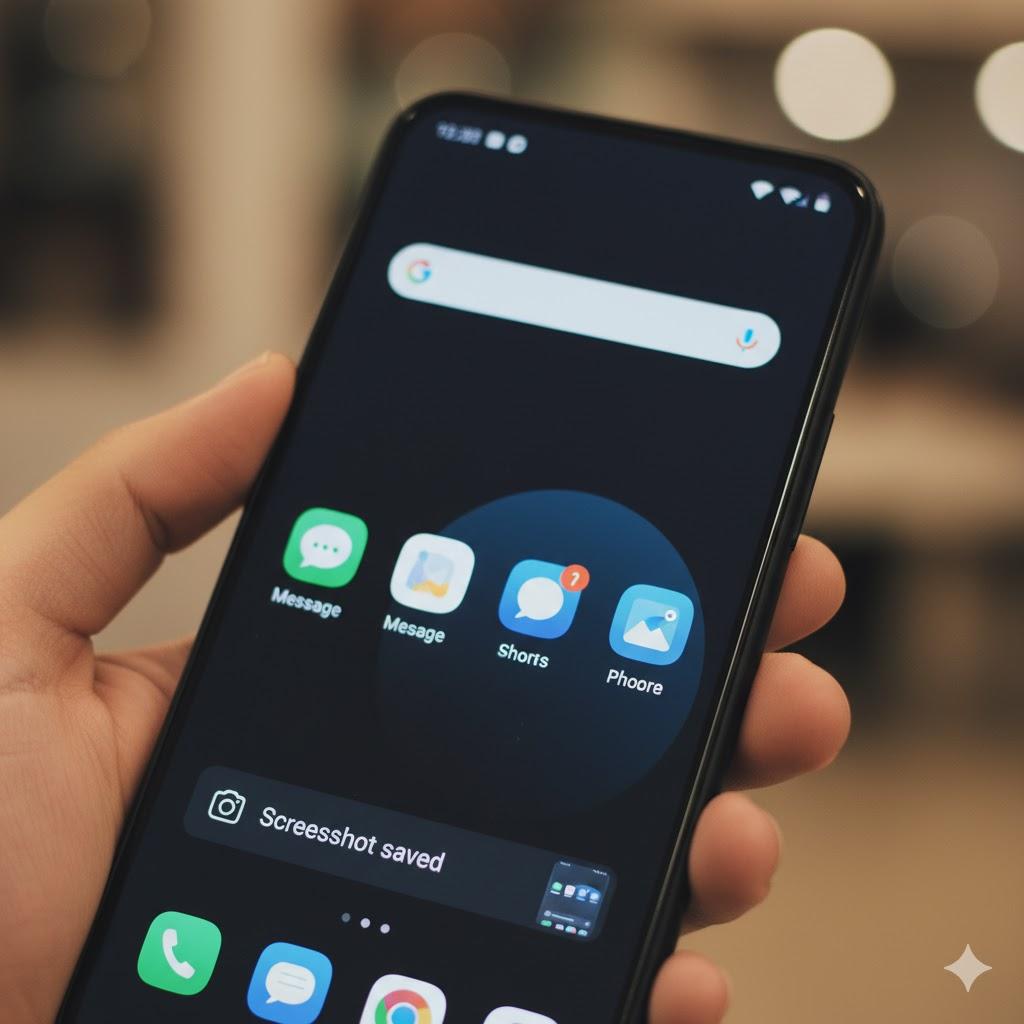
Press: Power + Volume Down.
The image appears in your Photos app under “Screenshots.”
5. Sharing a Screenshot
Email: Attach it like a photo.
Text: Tap the paperclip → choose “Screenshot.”
Print: Open and click Print.
Screenshots are perfect for tech support—showing is faster than explaining!
“Need a hand? Your friends at FriendlyHelp are just a click away—book your appointment today!
FAQ: Screenshot Questions
Q1: Where do screenshots go?
Usually in a “Screenshots” folder under “Pictures” or “Photos.”
Q2: Can I take a screenshot of a video?
Yes—but it’ll capture only what’s on screen, not motion.
Q3: Are screenshots safe?
Yes—just avoid sharing private info like passwords.
The 5 Golden Rules for Screenshots 📸
Use them to remember or share.
Rename before saving.
Delete old ones monthly.
Never post private info.
Practice once—it’ll feel natural!
Screenshots are one of the simplest tech tools you can learn—and one of the most powerful.
Instead of trying to describe what you’re seeing, a quick screenshot lets you save important information, share moments instantly, or get help faster with zero guesswork. And if taking or sharing screenshots still feels confusing, FriendlyHelp is always here to walk you through it step by step—no pressure, no jargon, just clear help when you need it.
