
Where Should I Save My Important Files?
Tax documents.
Family records.
Receipts.
Travel information.
Important letters.
You may have all of these saved digitally—but do you know exactly where they are?
Saving files is easy. Saving them somewhere you'll remember later is the harder part.
A simple folder system can make important documents much easier to find.
Imagine This Scenario
Someone asks you for an important document.
You know you saved it.
But where?
Downloads?
Documents?
Desktop?
Email?
Maybe it's still on your phone.
Twenty minutes later, you're opening folders with names you don't recognize and thinking:
"I know it's here somewhere!"
A simple filing system can prevent this.
1. Choose One Main Home for Important Files
One common problem is saving documents everywhere.
A few are on the desktop.
Others are in Downloads.
Some are buried in email.
Instead, choose one main location for documents you want to keep.
On a computer, this might be your Documents folder.
Inside it, you can create folders for different types of information.

2. Create Folders That Make Sense to You
You don't need an elaborate filing system.
Simple names work best.
For example:
Important Documents
Inside that folder:
Home
Travel
Receipts
Family
Insurance
Use categories that match your life.
There's no perfect system.
The best system is one you'll remember.
3. Rename Files Before You Forget What They Are
Downloaded files sometimes have confusing names such as:
DOC_78492_FINAL.pdf
That won't mean much six months from now.
Instead, rename it something useful.
For example:
Home Insurance 2026.pdf
or:
Hotel Booking – Vancouver.pdf
Clear filenames can save you a lot of searching later.
“Need a hand? Your friends at FriendlyHelp are just a click away—book your appointment
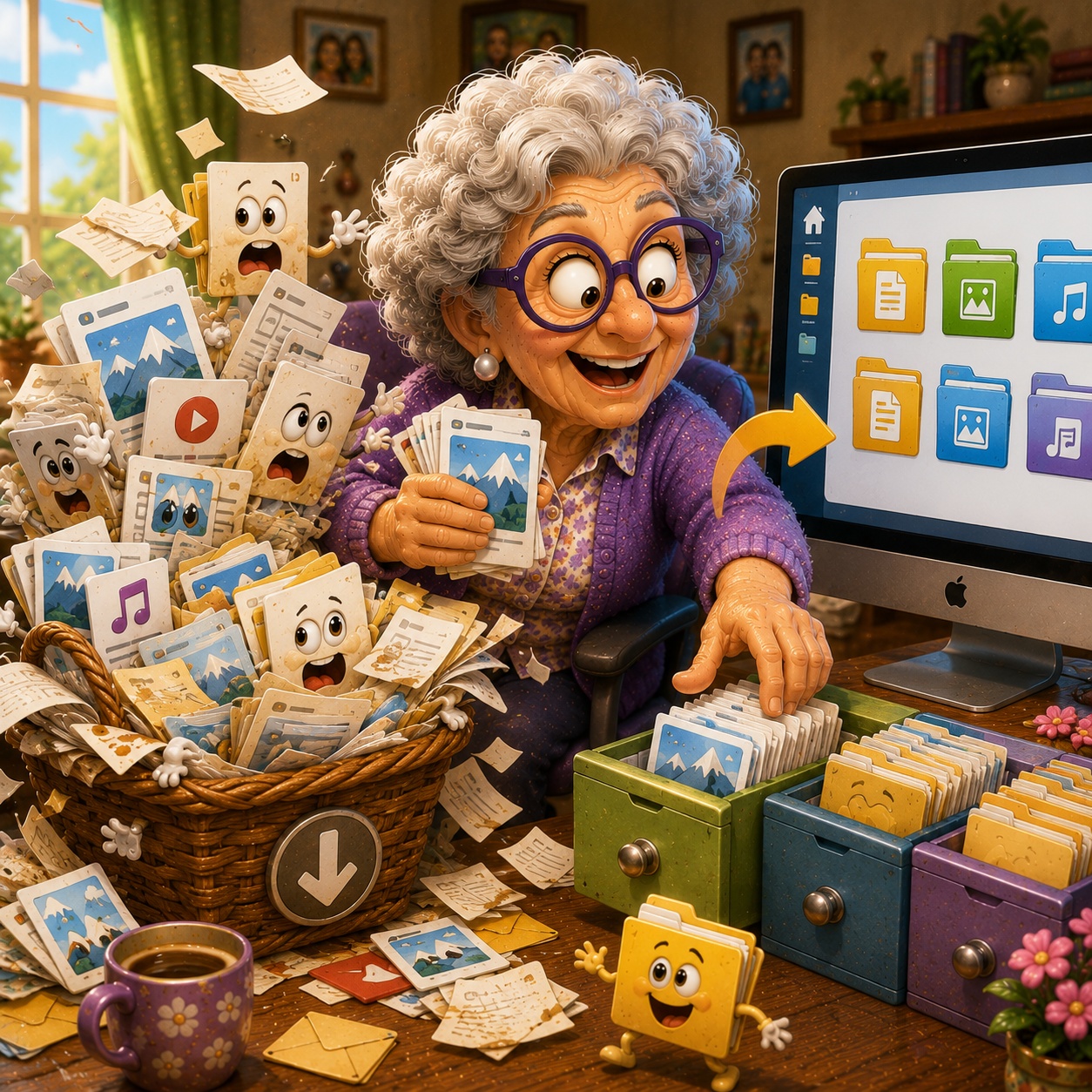
4. Don't Use Downloads as Permanent Storage
The Downloads folder is convenient, but it can quickly become crowded.
Think of Downloads like the kitchen counter.
It's a useful place to put something temporarily.
But you probably wouldn't store every important document there forever.
When you download something worth keeping, move it to the appropriate folder.
5. What About Cloud Storage?
Services such as iCloud, Google Drive, and OneDrive can store files online and make them available across compatible devices.
This can be useful if you want access from more than one device.
But you don't need to use every service.
Having documents scattered across several cloud services can make things more confusing.
✔️ Good Habit:
If you use cloud storage, choose a system you understand and use consistently.
“Need a hand? Your friends at FriendlyHelp are just a click away—book your appointment
6. Important Files Deserve a Backup
Organization helps you find files.
A backup helps you protect them.
For especially important documents, consider keeping another secure copy.
That might mean using:
a trusted cloud storage service
an external drive
another appropriate backup method
Remember:
Organizing and backing up are two different jobs.
A perfectly organized file can still be lost if the device storing it fails.
7. Be Careful With Sensitive Documents
Some files contain information you wouldn't want strangers to see.
Examples include financial records or documents containing personal information.
Don't casually store sensitive documents on:
shared computers
public computers
unfamiliar websites
And avoid sending sensitive information unnecessarily.
8. Do a Small File Cleanup Occasionally
You don't need to reorganize everything at once.
Once a month, spend a few minutes checking your Downloads or Desktop.
Ask:
Do I need this?
If yes → move it somewhere sensible.
If no → delete it.
If you're unsure → leave it until you can check.

FAQ
Q1: What's the best place to save important files?
Choose one main location you understand and can easily return to, such as the Documents folder on your computer or a trusted cloud storage service.
Q2: Is the Downloads folder bad?
No. It's useful for newly downloaded files, but it can become difficult to manage if everything stays there permanently.
Q3: Should I rename downloaded files?
Renaming important files with clear, descriptive names can make them much easier to identify later.
Q4: Do organized files still need backups?
Yes. Organization helps you find information, while backups help protect it from loss.
The 6 Better File Habits
• Choose one main home for important documents
• Create simple folders
• Give files recognizable names
• Move important items out of Downloads
• Keep backups of valuable files
• Clean up a little at a time
FriendlyHelp helps make your digital life easier to manage—because finding an important document shouldn't feel like searching your entire house for a missing piece of paper.
