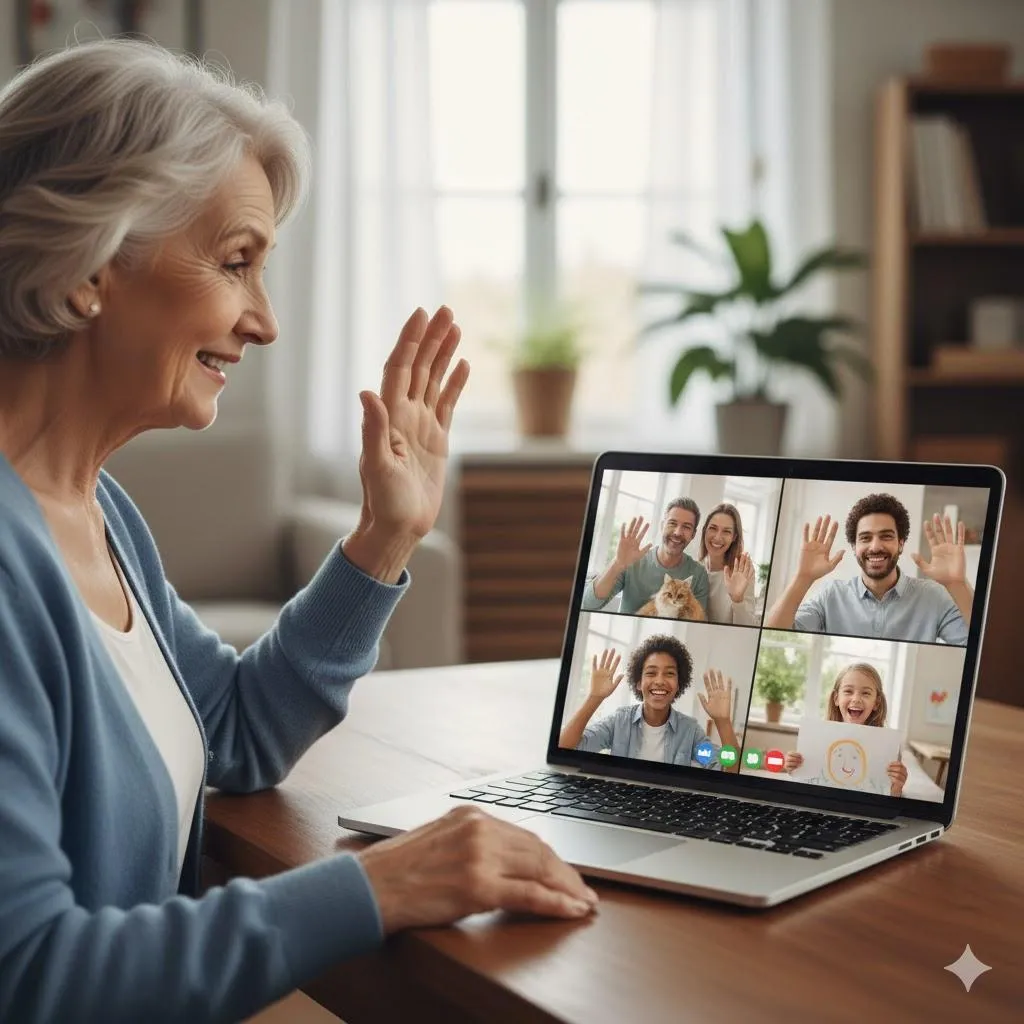
How Do I Use Zoom on My Computer?
Quick Summary
Zoom is one of the easiest ways to video call family, friends, or doctors without leaving home. This simple guide walks you through how to set it up, join meetings, and look your best on camera—no tech degree required!
Imagine This Scenario
Your granddaughter says, “Grandma, let’s do a video call on Zoom!”
You nod confidently… then wonder, “What on earth is a Zoom?”
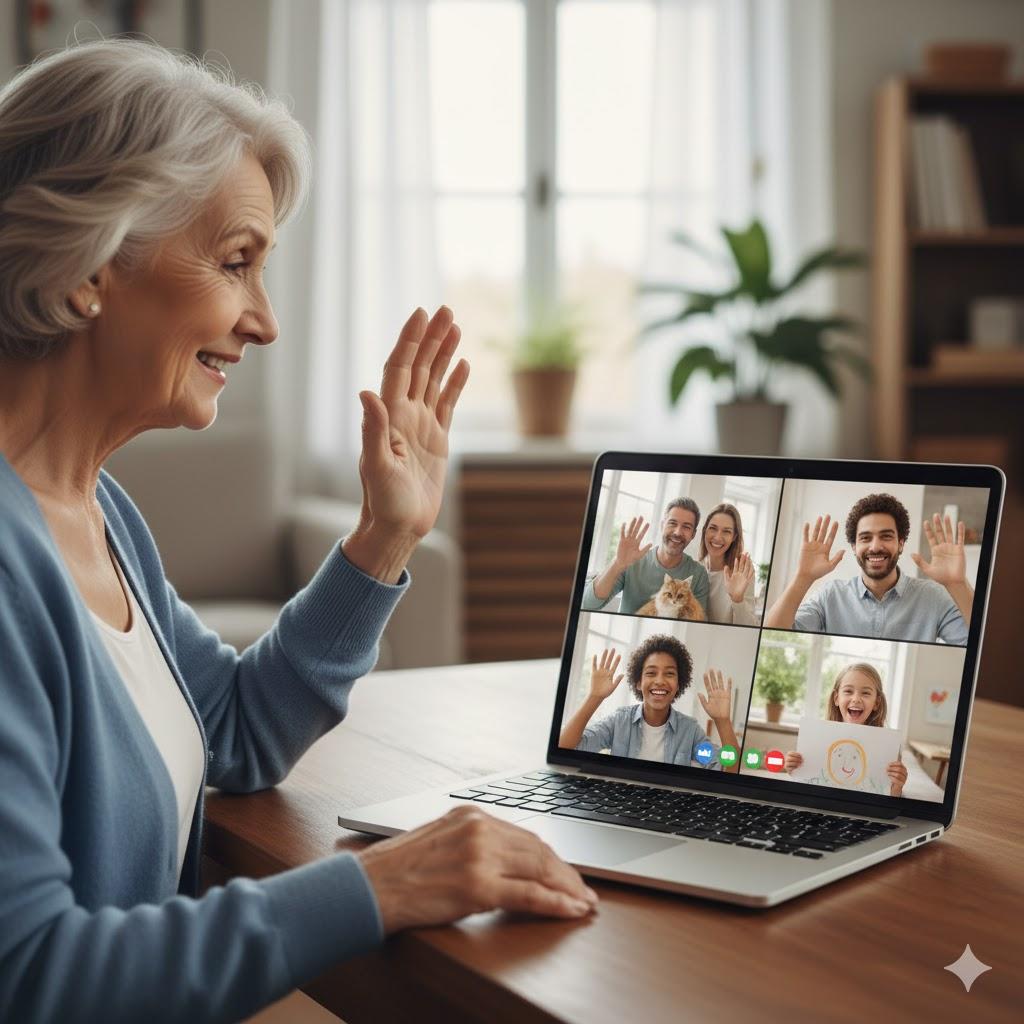
A few minutes later, after some clicks and a mysterious password box, you see her smiling face on your screen. She waves, you wave—success!
That’s what this guide is all about: making sure every Zoom call goes smoothly, from installation to “goodbye hugs.”
What Zoom Is (and Isn’t)
Summary: Zoom lets you see and talk to people through your computer’s camera and microphone.
You can use Zoom for:
Family chats and birthdays 🎂
Online classes or church groups
Telehealth appointments
Work meetings (if you’re still the office hero)
You don’t need fancy gear—just a computer with a camera, microphone, speakers, and internet connection.
Step 1: Download Zoom
Summary: You only have to do this once.
Go to https://zoom.us/download.
Under “Zoom Desktop Client,” click Download.
Open the file (ZoomInstaller.exe on Windows or Zoom.pkg on Mac).
Follow the simple on-screen steps.
When it’s done, you’ll see a blue camera icon labeled Zoom. That’s your door to every future call.
“Need a hand? Your friends at FriendlyHelp are just a click away—book your appointment today!
Step 2: Join a Meeting
Summary: The easiest way to start—no account needed.
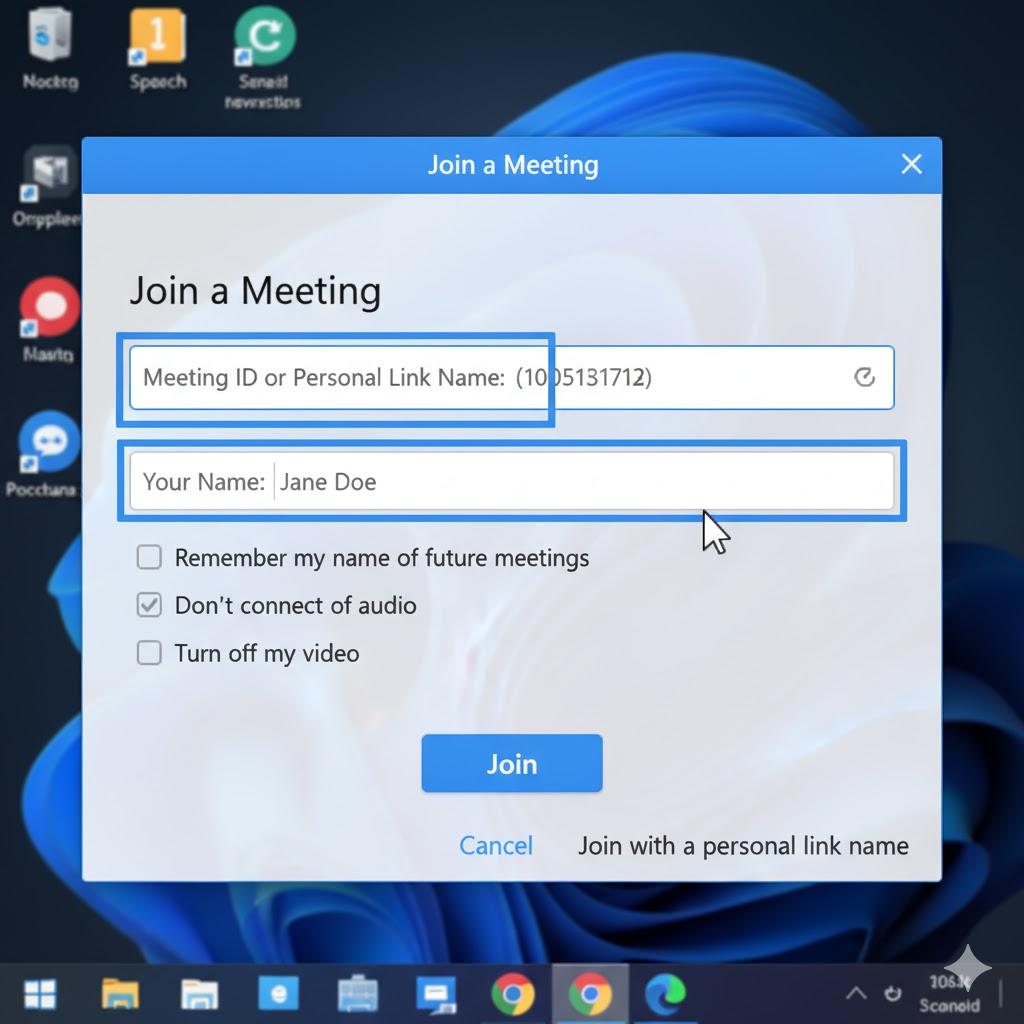
Open Zoom.
Click Join a Meeting.
Type the Meeting ID (the number your host gives you).
Enter your name (so everyone knows it’s you).
Click Join.
If there’s a password, Zoom will ask for it next. Once you join, you’ll see familiar faces on your screen.
Step 3: Host or Schedule Your Own Meeting
Summary: Once you’re comfortable, you can invite others.
Open Zoom → click Sign In.
Create a free account using your email.
Click New Meeting to start instantly or Schedule to pick a time.
Copy the meeting link and send it by email or text.
Everyone you invite just clicks the link—no setup stress for them either.
Step 4: Learn the Buttons (Your Zoom Control Bar)
Summary: These four buttons do almost everything.
🎤 Mute/Unmute – Turns your microphone on or off.
🎥 Start/Stop Video – Controls your camera.
👥 Participants – See who’s in the meeting.
💬 Chat – Type a quick message if your mic acts up.
💡 Tip: When you’re not talking, press Mute to keep background noise away.
Step 5: Look and Sound Your Best
Summary: A few simple tweaks make a big difference.
Sit near a window or lamp so your face is bright and clear.
Keep the camera at eye level (stack books under your laptop if needed).
Use headphones for clearer sound.
Click the little arrow next to Video → choose Video Settings if you need more light.
And don’t worry—everyone loves a cat or grandchild cameo. 🐱
Step 6: Stay Safe on Zoom
Summary: Keep calls private and stress-free.
Join only from links you trust.
Never share meeting passwords on social media.
Keep Zoom updated—updates fix bugs and add safety.
Use “Leave Meeting” (bottom right) when you’re done.
👉 See Zoom’s official safety page for more tips.
“Need a hand? Your friends at FriendlyHelp are just a click away—book your appointment today!
Final Thoughts
Zoom is one of the simplest ways to stay close to family and friends when distance gets in the way. A few clicks, a friendly face, and suddenly it feels like you’re in the same room—without even putting on shoes.
So next time someone says, “Let’s Zoom!” you can smile and reply, “Sure thing—I know exactly what to do.”

FAQ: Using Zoom for the First Time
Q1: Do I need a Zoom account just to join?
No. You can join any meeting with the link or Meeting ID.
Q2: What if I can’t hear anyone?
Click the arrow next to the microphone and make sure your speakers are selected.
Q3: Is Zoom free?
Yes! The free plan lets you talk up to 40 minutes with groups—or unlimited time one-on-one.
Q4: Can I use Zoom without a camera?
Yes. Others can still hear you—you’ll just appear as a name box.
Q5: Can Zoom show captions?
Yes. Click “Show Captions” at the bottom of the screen if the host enables it.
The 5 Golden Rules for Enjoying Zoom 🧑💻
Join early – Click the link five minutes before start time.
Mute when not speaking – Everyone will thank you.
Look at the camera – It feels more like eye contact.
Be patient – People talk over each other sometimes.
Smile—it’s still you, just on screen!
Zoom may feel unfamiliar at first, but it’s really just another way to sit face-to-face with the people who matter—without travel, stress, or rushing out the door. Once you’ve joined a meeting a few times, the steps become second nature. And if something doesn’t work the way you expect, that’s completely normal. FriendlyHelp is always here to walk you through it patiently, one click at a time—so every Zoom call feels comfortable, confident, and enjoyable.
