7 Easy Ways to Share Photos with Loved Ones
Quick Summary
Sharing photos doesn’t have to involve confusing apps, missing attachments, or “storage full” messages. Whether it’s baby pictures, vacation shots, or family reunions, here are seven simple and senior-friendly ways to send, save, and share your favorite memories safely—no tech stress required.
Imagine This Scenario
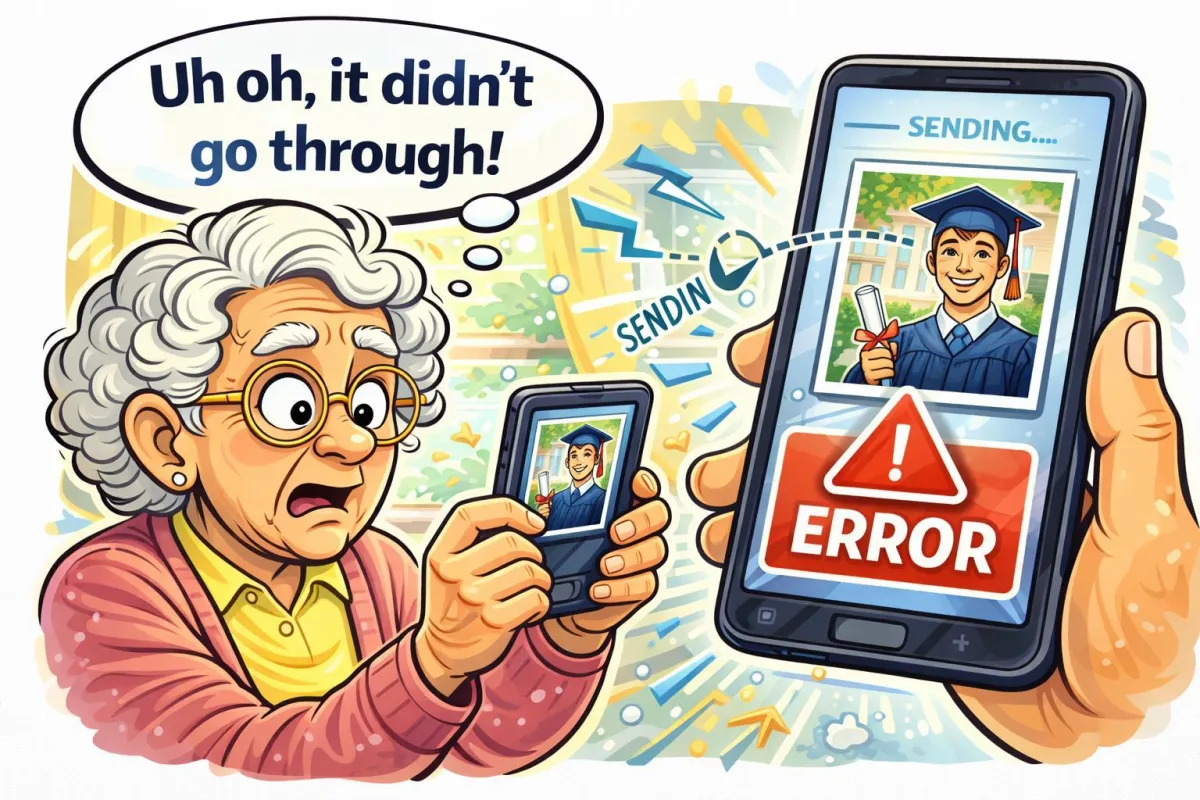
You take the perfect photo of your grandchild’s first piano recital and can’t wait to send it.
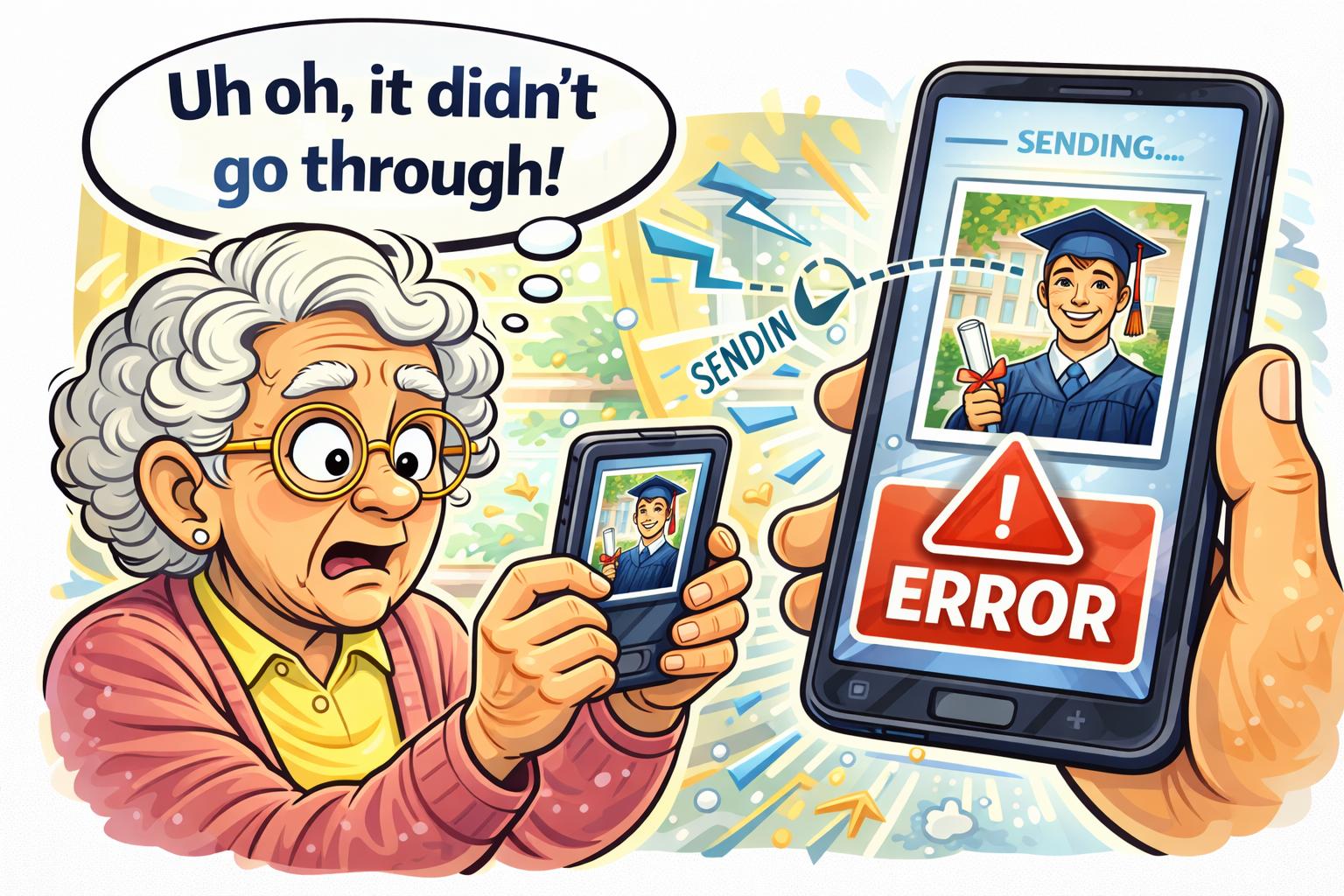
You text it to your daughter, but she replies, “It didn’t go through!”
You try again by email—now it says, “File too large.”
Don’t worry! There are much easier ways to share photos today that don’t require juggling apps or cords.
1. Email (for a few photos at a time)
Summary: Simple and familiar—but keep it light.
Email is great for sending one or two pictures at a time. Most email services limit attachment sizes (around 25 MB), so big albums may not send.
👉 Tip: If you have a Gmail account, try Google Photos instead—it links right to your email.
2. Google Photos (for easy albums)
Summary: Share hundreds of photos privately.
Go to https://photos.google.com.
Upload your pictures.
Click Share → choose your contact or get a link.
You can create albums for each event (“Hawaii Trip,” “Family Reunion”) and share just that link—no need to attach files.
✅ Works on computer, Android, or iPhone.
💡 Bonus: It also backs up your photos automatically.
“Need a hand? Your friends at FriendlyHelp are just a click away—book your appointment today!
3. Apple Photos (for iPhone, iPad, or Mac users)
Summary: Perfect for families in the Apple world.
Apple Photos lets you create Shared Albums that appear on everyone’s devices instantly.
How to:
Open Photos → tap Albums → + → New Shared Album.
Add family members’ Apple IDs.
They’ll get a notification and can add their own pictures too!
🔗 Learn more: https://support.apple.com/en-us/HT202786
4. Facebook or Private Facebook Groups
Summary: Social and simple—if your family’s already there.
You can upload photos privately to a closed family group or post them just for friends.
Click Photo/Video → choose your picture.
Adjust privacy settings to Friends Only or Group Only before posting.
✅ Free, easy, and no attachments needed.
❌ Avoid posting public family photos unless you’re comfortable with who can see them.
5. Shared Family Chat (Messenger, WhatsApp, or Viber)
Summary: The quickest “tap and share” method.
If your family already chats daily on Messenger, WhatsApp, or Viber, you can send photos instantly right inside the conversation.
📲 Tip: On WhatsApp, tap the paperclip icon → Gallery → Select Photo → Send.
Just note that chat apps slightly reduce photo quality—but they’re perfect for casual sharing.
6. Cloud Drives (Google Drive, Dropbox, OneDrive)
Summary: Great for big batches or backups.
You can upload entire folders, label them, and share a single link:
Google Drive
Dropbox
Microsoft OneDrive
These services are secure, and you can give viewing access to specific people only.
💡 Bonus Tip: Add captions or notes to each folder (e.g., “Mom’s Birthday 2025”).
“Need a hand? Your friends at FriendlyHelp are just a click away—book your appointment today!

7. Digital Picture Frames with Wi-Fi
Summary: Sharing made hands-free.
Digital frames like Aura Frame or Nixplay connect to Wi-Fi and show photos you send from your phone or email.
You can share your frame code with family, and they can add photos remotely—perfect for grandparents who love surprise updates!
Imagine waking up to a brand-new slideshow of family smiles every morning.
FAQ: Sharing Photos Safely
Q1: Will people see all my photos?
No—only the ones you choose to share. Apps like Google Photos or Dropbox let you control each album’s privacy.
Q2: Can I share videos too?
Yes! Most of these services handle short videos just like photos (watch file size on email).
Q3: Are these free?
Yes. All have free versions, though you may pay for extra storage if you upload thousands of pictures.
Q4: What if my family uses different devices?
Use Google Photos or Dropbox—they work on both Apple and Android.
The 5 Golden Rules for Sharing Photos 🖼️
Share privately. Always check who can view the album or post.
Keep backups. Upload to Google Photos or a flash drive regularly.
Resize before emailing. Smaller files send faster.
Name your albums clearly. (“Trip to Florida 2024” beats “IMG_3421.”)
Have fun! Technology should make memories easier to share, not harder.
Sharing photos should bring joy—not frustration.
With the right method, sending memories becomes simple, private, and stress-free, no matter what devices your family uses. Once you find a way that fits your routine, sharing moments feels effortless again. And if you’d like help choosing the best option or setting it up the first time, FriendlyHelp is here to walk you through it calmly and clearly—so your memories reach the people who matter most.
