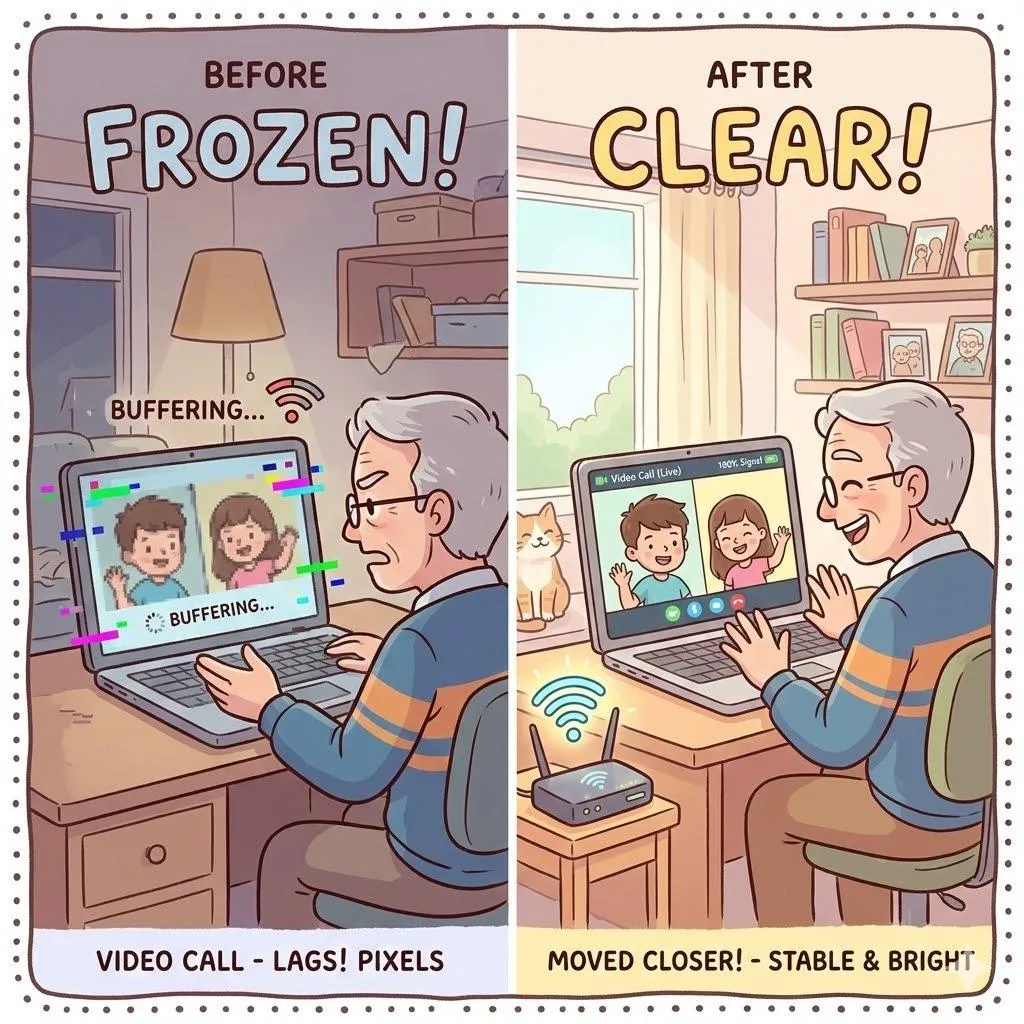
When Video Calls Keep Freezing: A Calm Troubleshooting Guide
Why This Happens
Video calls use more internet than browsing websites or sending messages.
When your connection struggles, video is usually the first thing to freeze.
Let’s troubleshoot calmly.
Scene: “Can You Hear Me Now?”
You’re talking to family.
Their faces freeze mid-sentence.
Audio cuts out.
The screen pixelates.
You feel embarrassed.
Before blaming yourself, let’s diagnose properly.
Step 1: Check Who Else Is Online
If someone in your home is:
Streaming Netflix
Downloading large files
Gaming online
Your call may slow down.
Solution:
Pause other heavy internet use during calls.

Step 2: Move Closer — Even a Few Steps Helps
Signals weaken with distance.
Even moving 5–10 feet closer can stabilize video.
Solution:
Test your call from the same room as the router.
Step 3: Switch From Wi-Fi to Mobile Data (Quick Test)
If your call improves on mobile data, your home Wi-Fi is the bottleneck.
If it doesn’t improve, the issue may be the app or your device.
Step 4: Lower Video Quality
Most video apps adjust automatically — but some allow manual settings.
Lower resolution uses less bandwidth.
“Need a hand? Your friends at FriendlyHelp are just a click away—book your appointment

Step 5: Restart Before Important Calls
A quick device restart clears background apps using bandwidth.
It’s a 60-second habit that prevents frustration.
FAQ
Q1: Is my internet plan too slow?
Not always. Household traffic often causes freezes.
Q2: Does camera quality affect freezing?
No — freezing is usually internet-related.
Q3: Should I buy a Wi-Fi extender?
Only if certain rooms consistently have weak signal.
Video calls freezing is common — and usually fixable without expensive upgrades.
FriendlyHelp supports families in setting up smooth, stress-free home connectivity so calls stay clear and enjoyable.
