A Beginner’s Guide to Smart TVs: How to Watch Anything Without Getting Confused
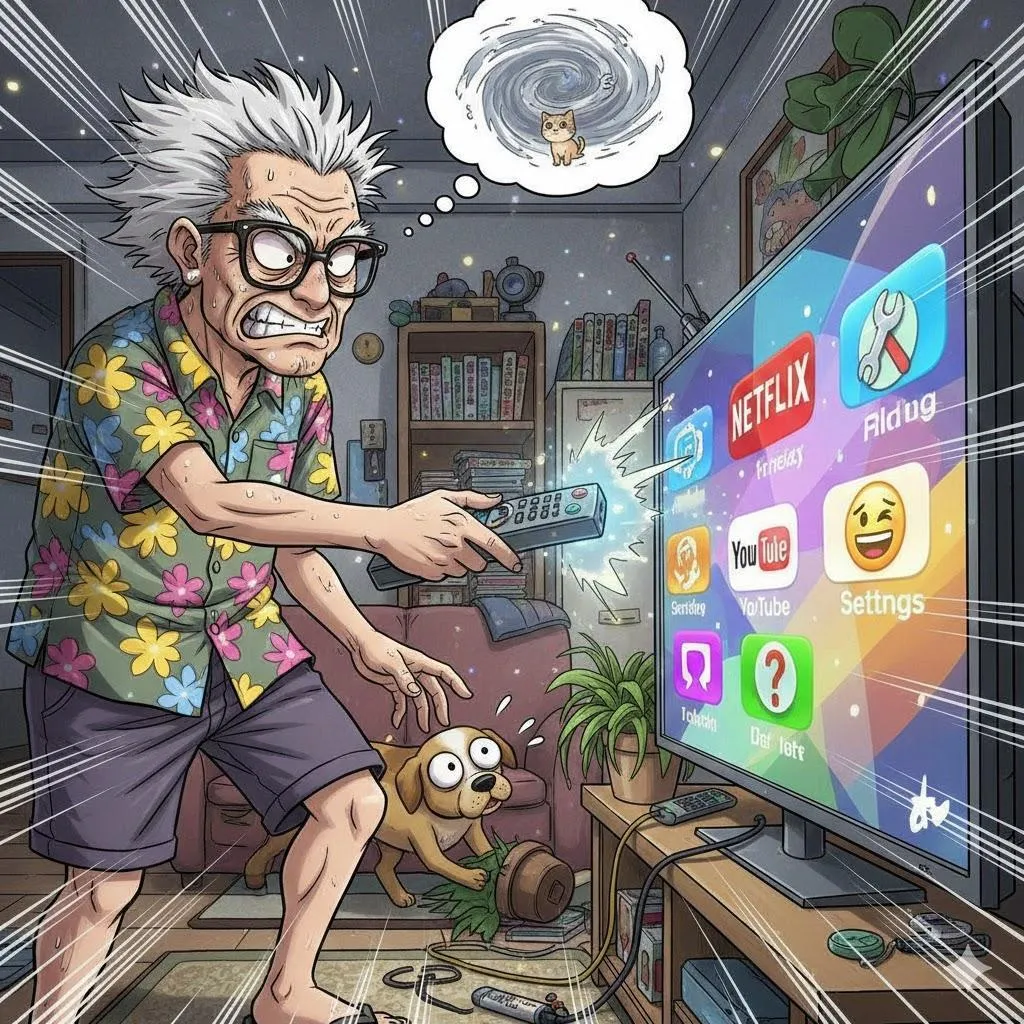
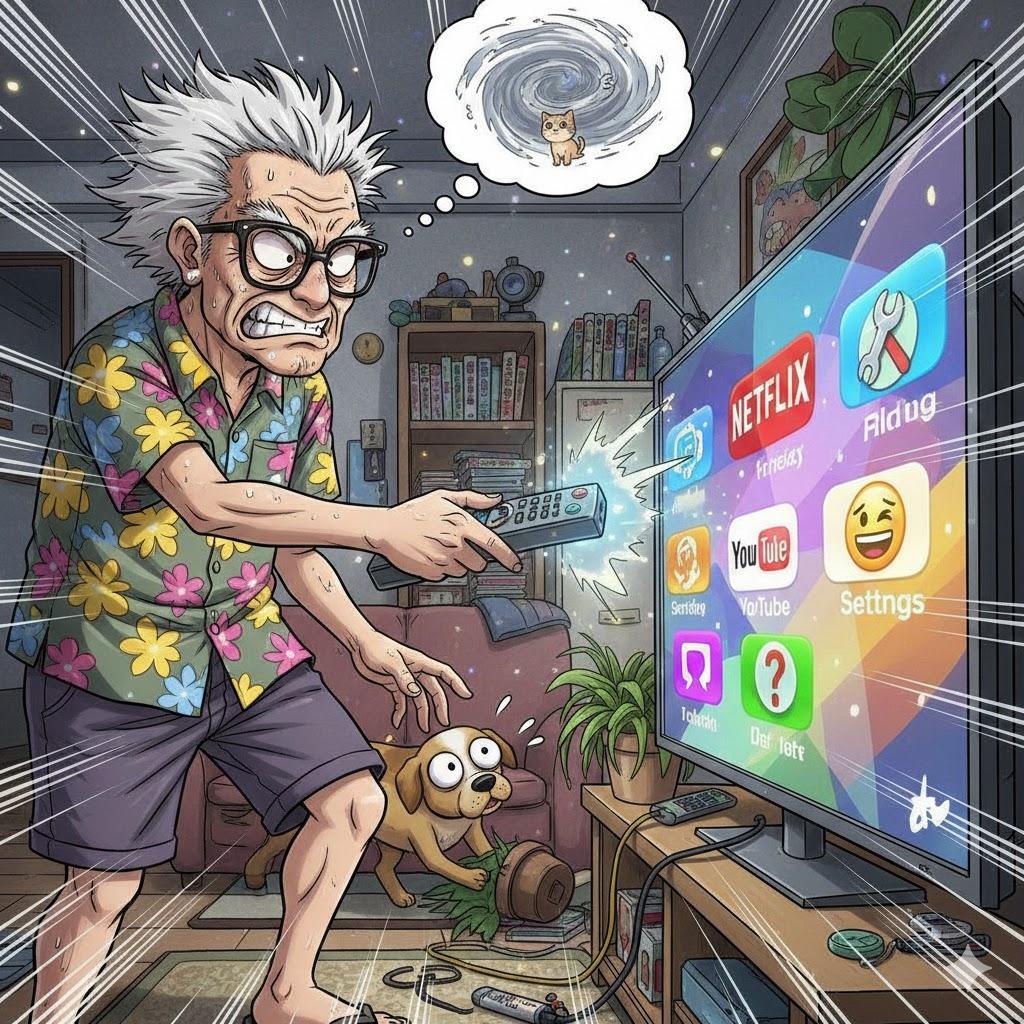
Imagine This Scenario
You sit down to watch your favorite show.
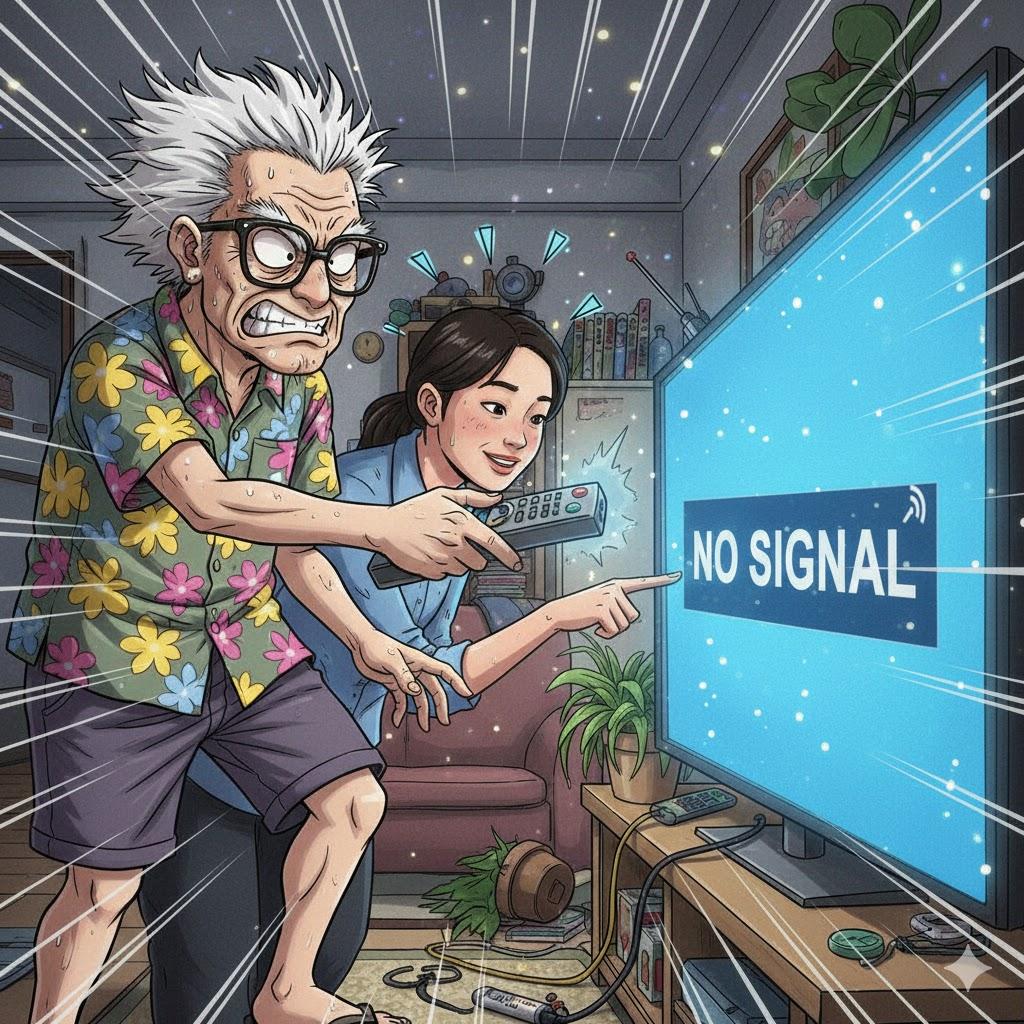
You press a button… the TV flashes “No Signal.”
You press another… suddenly you’re looking at a weather app in Portuguese.
Now your remote won’t go back.
Sound familiar?
You’re not alone—smart TVs confuse millions of people.
But with a little guidance, they become your best friend in the living room.
1. What Is a Smart TV?
Summary: A TV with apps, just like a phone.
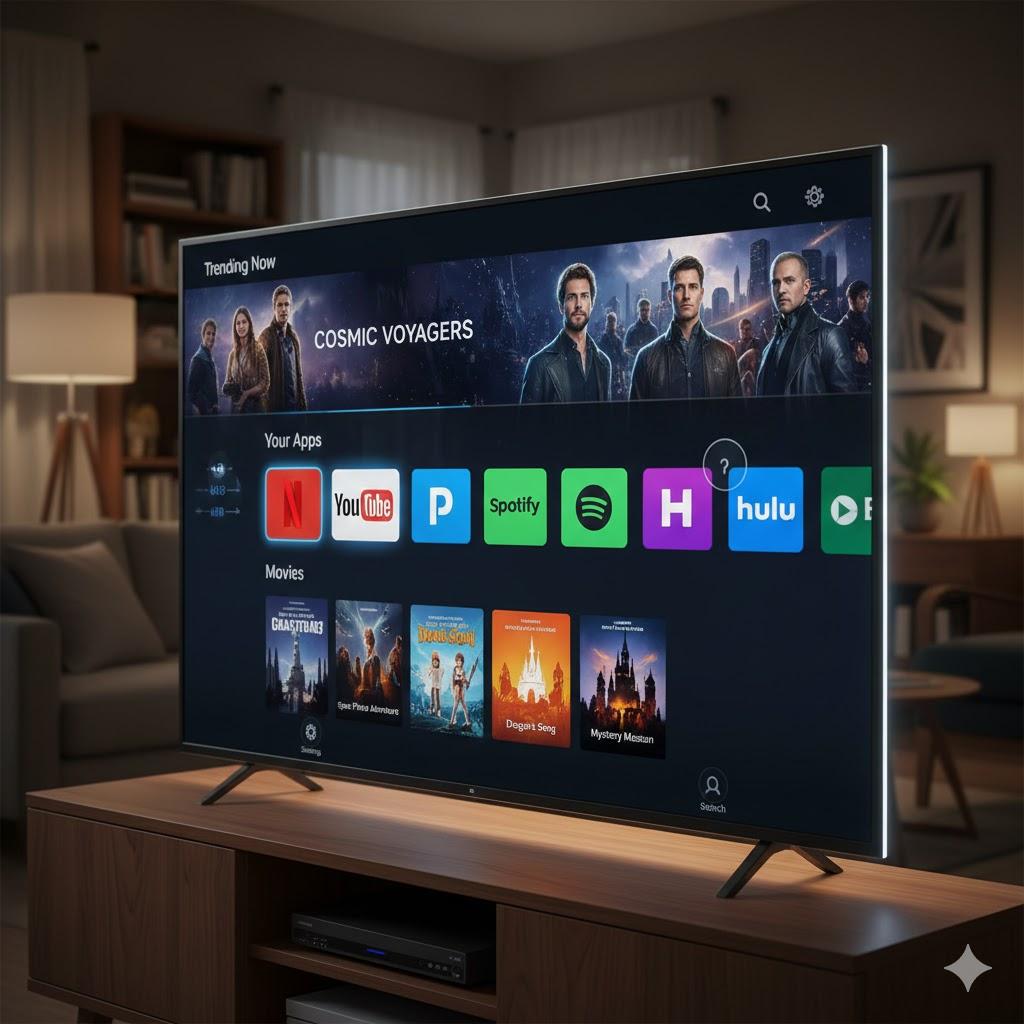
A Smart TV connects to the internet and lets you open apps such as:
Netflix
YouTube
Disney+
Amazon Prime
Hulu
News apps
Weather
Music
Games
Think of it as a big phone screen you watch from your couch.
2. Understanding Inputs (HDMI, TV, AV)
Summary: Inputs tell your TV where the picture is coming from.
You’ll usually see:
HDMI 1 / HDMI 2 (cable box, DVD player, Roku, game consoles)
TV / Antenna (local channels)
AV (older devices)
Apps (built into the TV)
If nothing is showing, press the Input or Source button until you find the device you want.
💡 Tip: Put a small label on cables: “Cable Box,” “DVD,” “Roku” for easy navigation.
“Need a hand? Your friends at FriendlyHelp are just a click away—book your appointment today!
3. How to Use Streaming Apps
Summary: Apps are where your shows live.
Netflix:
Open Netflix app
Pick a profile
Choose a movie or show
Press Play
YouTube:
Open YouTube
Use Search to find topics you like (music, travel, cooking, church services)
Disney+:
Great for Pixar, Star Wars, Marvel, and family movies
Tap Search or browse categories
4. The Remote — Your Best Friend
Summary: You only need 6 buttons.
Ignore the 40 confusing ones.
Here are the heroes:
Power
Home (takes you back to apps)
Volume + / -
Back
OK / Select
Directional arrows
💡 Tip: Put a small sticker on the important buttons so they’re easy to find.
5. Connecting to Wi-Fi
Summary: Without Wi-Fi, apps won’t load.
Press Settings
Tap Network or Wi-Fi
Choose your home network
Enter your password
When connected, a little Wi-Fi symbol usually appears.
6. Common Smart TV Problems (and Simple Fixes)
Problem: “No Signal.”
Solution: Switch inputs (HDMI 1, HDMI 2, TV).
Problem: Apps won’t load.
Solution: Check Wi-Fi or restart TV.
Problem: No sound.
Solution: Turn volume up on TV and soundbar (if you have one).
Problem: TV keeps updating.
Solution: Updates keep apps running smoothly—let them finish.
“Need a hand? Your friends at FriendlyHelp are just a click away—book your appointment today!
FAQ: Smart TV Basics
Q1: Can a Smart TV work without the internet?
Yes—but only for cable or antenna channels. Apps require Wi-Fi.
Q2: Why does my TV keep asking to update?
It improves picture quality and keeps apps working.
Q3: Do I need to log in every time?
No—apps remember you (unless the TV resets).
The 5 Golden Rules of Smart TV Confidence
Use the Home button if you get lost.
Switch Inputs to find cable or boxes.
Keep Wi-Fi connected for apps.
Ignore the buttons you don’t need.
Take your time—there’s no wrong button.
Smart TVs feel confusing at first because they try to do a lot—but you only need a little.
Once you understand the Home button, inputs, and a few familiar apps, everything else becomes optional. There’s no rush and no wrong button—just exploration at your own pace. And if your TV ever feels stuck, confusing, or overwhelming, FriendlyHelp is here to help you get comfortable and confident—so watching what you love stays relaxing, not stressful.
Quick Summary
Smart TVs can feel overwhelming—apps, HDMI inputs, menus, remotes that look like spaceship panels—but once you learn a few basics, they’re incredibly easy to use. This guide gently walks you through everything you need to watch shows, movies, YouTube, news, and more without frustration.
Imagine This Scenario
You sit down to watch your favorite show.
You press a button… the TV flashes “No Signal.”
You press another… suddenly you’re looking at a weather app in Portuguese.
Now your remote won’t go back.
Sound familiar?
You’re not alone—smart TVs confuse millions of people.
But with a little guidance, they become your best friend in the living room.
1. What Is a Smart TV?
Summary: A TV with apps, just like a phone.
A Smart TV connects to the internet and lets you open apps such as:
Netflix
YouTube
Disney+
Amazon Prime
Hulu
News apps
Weather
Music
Games
Think of it as a big phone screen you watch from your couch.
2. Understanding Inputs (HDMI, TV, AV)
Summary: Inputs tell your TV where the picture is coming from.
You’ll usually see:
HDMI 1 / HDMI 2 (cable box, DVD player, Roku, game consoles)
TV / Antenna (local channels)
AV (older devices)
Apps (built into the TV)
If nothing is showing, press the Input or Source button until you find the device you want.
💡 Tip: Put a small label on cables: “Cable Box,” “DVD,” “Roku” for easy navigation.
“Need a hand? Your friends at FriendlyHelp are just a click away—book your appointment today!
3. How to Use Streaming Apps
Summary: Apps are where your shows live.
Netflix:
Open Netflix app
Pick a profile
Choose a movie or show
Press Play
YouTube:
Open YouTube
Use Search to find topics you like (music, travel, cooking, church services)
Disney+:
Great for Pixar, Star Wars, Marvel, and family movies
Tap Search or browse categories
4. The Remote — Your Best Friend
Summary: You only need 6 buttons.
Ignore the 40 confusing ones.
Here are the heroes:
Power
Home (takes you back to apps)
Volume + / -
Back
OK / Select
Directional arrows
💡 Tip: Put a small sticker on the important buttons so they’re easy to find.
5. Connecting to Wi-Fi
Summary: Without Wi-Fi, apps won’t load.
Press Settings
Tap Network or Wi-Fi
Choose your home network
Enter your password
When connected, a little Wi-Fi symbol usually appears.
6. Common Smart TV Problems (and Simple Fixes)
Problem: “No Signal.”
Solution: Switch inputs (HDMI 1, HDMI 2, TV).
Problem: Apps won’t load.
Solution: Check Wi-Fi or restart TV.
Problem: No sound.
Solution: Turn volume up on TV and soundbar (if you have one).
Problem: TV keeps updating.
Solution: Updates keep apps running smoothly—let them finish.
“Need a hand? Your friends at FriendlyHelp are just a click away—book your appointment today!
FAQ: Smart TV Basics
Q1: Can a Smart TV work without the internet?
Yes—but only for cable or antenna channels. Apps require Wi-Fi.
Q2: Why does my TV keep asking to update?
It improves picture quality and keeps apps working.
Q3: Do I need to log in every time?
No—apps remember you (unless the TV resets).
The 5 Golden Rules of Smart TV Confidence
Use the Home button if you get lost.
Switch Inputs to find cable or boxes.
Keep Wi-Fi connected for apps.
Ignore the buttons you don’t need.
Take your time—there’s no wrong button.
Smart TVs feel confusing at first because they try to do a lot—but you only need a little.
Once you understand the Home button, inputs, and a few familiar apps, everything else becomes optional. There’s no rush and no wrong button—just exploration at your own pace. And if your TV ever feels stuck, confusing, or overwhelming, FriendlyHelp is here to help you get comfortable and confident—so watching what you love stays relaxing, not stressful.
