Bluetooth Made Simple: How to Connect Headphones, Speakers, and Smart Devices
Quick Summary
Bluetooth lets your devices talk to each other wirelessly—no cables, no mess, no frustration. Here’s the easiest guide to connecting Bluetooth headphones, speakers, keyboards, and more.
Imagine This Scenario
You buy new wireless headphones.
You try to connect them.
Your phone says “Searching…”
Your headphones blink blue.
Nothin’.
Bluetooth can feel mysterious—but it’s actually simple once you know the steps.
1. What Is Bluetooth?
Summary: Wireless connections for short distances.
Bluetooth is like a silent handshake between devices.
Use it for:
Wireless headphones
Speakers
Hearing aids
Keyboards
Smartwatches
Car connections (hands-free calling)
2. The Universal 3-Step Method
Summary: Works for almost ANY Bluetooth device.
Step 1 — Turn On Bluetooth
On iPhone: Settings → Bluetooth → On
On Android: Settings → Connections → Bluetooth → On
Step 2 — Put Device in Pairing Mode
This usually means:
Holding the power button for 3–5 seconds
A blinking blue light
Or a voice saying “Pairing”
Step 3 — Tap the Device Name
Your phone will show nearby devices.
Tap the one that matches your accessory.
Done!
“Need a hand? Your friends at FriendlyHelp are just a click away—book your appointment today!
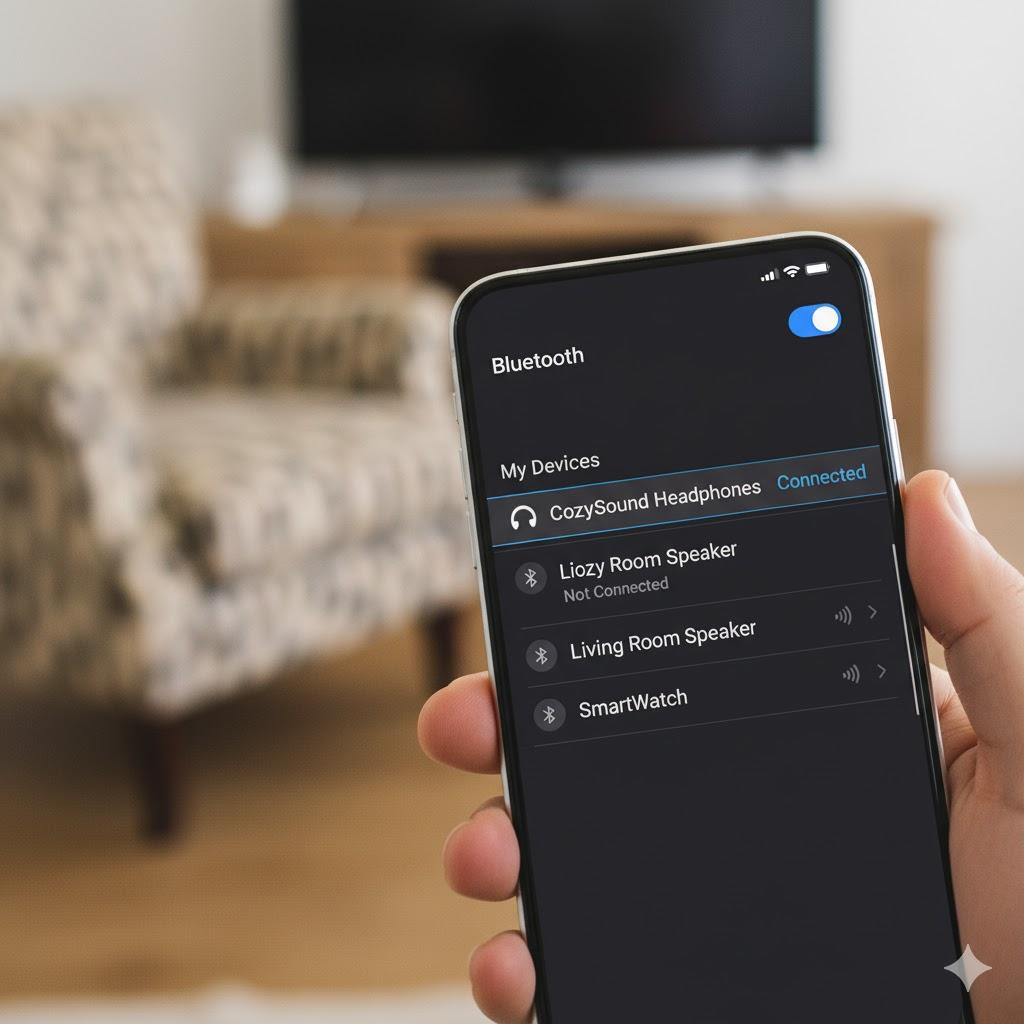
3. Connecting Bluetooth Headphones
Summary: Great for calls, music, or privacy.
Steps:
Turn on headphones
Enter pairing mode (usually blinking light)
Find them on your phone’s Bluetooth list
Tap to connect
💡 Tip: Headphones can only connect to one device at a time. Turn off Bluetooth on your other devices if needed.
4. Connecting Bluetooth Speakers
Perfect for music at home or playing videos louder.
Turn the speaker on
Hold the Bluetooth button
Connect from your phone
Turn up volume on BOTH devices
5. Connecting to Your Car
Summary: Hands-free calling for safety.
Start the car
Open your phone’s Bluetooth
Select your car from the list
Approve “Sync Contacts” if you want caller names shown
6. Bluetooth Troubleshooting
Summary: Easy fixes when it doesn’t connect.
Turn Bluetooth off and on again
Forget the device and reconnect
Restart the accessory
Charge your headphones or speaker
Move closer (Bluetooth range is short)
“Need a hand? Your friends at FriendlyHelp are just a click away—book your appointment today!
FAQ: Bluetooth Basics
Q1: Does Bluetooth use Wi-Fi?
No—they’re separate.
Q2: Does Bluetooth cost money?
No—completely free.
Q3: Why won’t it connect sometimes?
Usually the device is already connected elsewhere or needs charging.
The 5 Golden Rules of Bluetooth
Keep Bluetooth turned on.
Pair one device at a time.
Stay close—Bluetooth range is short.
Charge accessories regularly.
Restart if unsure (it works wonders!).
Bluetooth works best when you keep things simple and patient.
Once you know the basic pairing steps, connecting headphones, speakers, and other devices becomes quick and predictable. Most hiccups are just pairing or power issues, not real problems. And if Bluetooth ever feels stubborn or confusing, FriendlyHelp is here to help you connect everything smoothly—calmly, clearly, and without frustration.
